Try the sample data on a Mac
A one-click way to fill your new easy-install with made-up clients (or Patients), jobs, invoices and expenses, so you can see how everything works. Your own records are never touched, and you can remove the sample data at any time. (for standard installs see the sample-data-phpmyadmin page)
The sample records count towards the trial’s 10-record limit. Remove the sample data (one click) before you add your own, or delete a record or 2 or activate a licence to lift the limit
- Docker Desktop is open and your software is running.
- You have downloaded the sample data zip for your product and unzipped it. Keep all the files together in the one folder.
- Do this on a fresh install, before you turn on encryption.
- download sample data for CrystalSolutions
- download sample data for PraxisClinic
- download sample data for SoleTrader
-
Double-click the Add file
Unzip the sample-data download, then copy the unzipped folder into the same folder as your installed SoleTrader or CrystalSolutions or PraxisClinic (the folder that contains docker-compose.yml). The two folders should sit side by side.
In the unzipped folder, double-click
Add sample data (…).command(the name ends with your product's name).The first time, your Mac will say it can't check the file. That is normal for software that doesn't come through the App Store. Don't click "Move to Bin" – click "Done".
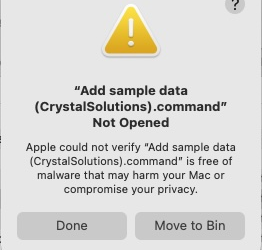
The first-time warning. Click Done. -
Allow it in System Settings (first time only)
Open System Settings and go to Privacy & Security. Scroll down to the Security section. You will see a message saying the
Add sample datafile was blocked. Click Open Anyway (arrow 1).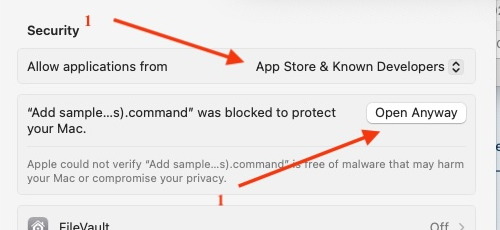
System Settings → Privacy & Security → Security. Click Open Anyway (1). Your Mac may ask for your password. -
Double-click the file again and click Open Anyway
Back in the folder, double-click
Add sample data (…).commandonce more. This time the warning has an Open Anyway button (arrow 2). Click it.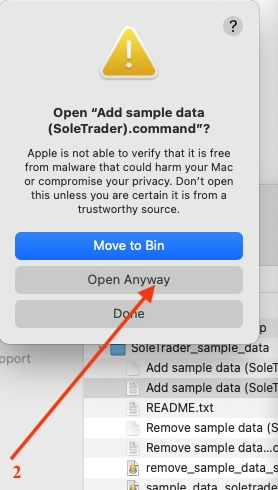
Click Open Anyway (2). You only have to do steps 2 and 3 once for each file. Older versions of macOS: right-click the file, choose Open, then click Open again.
-
Press Return
A small Terminal window opens and tells you what is about to happen (arrow 3). Press Return to carry on. It takes a few seconds, and then says Done. Sample data added. Press Return again to close it.
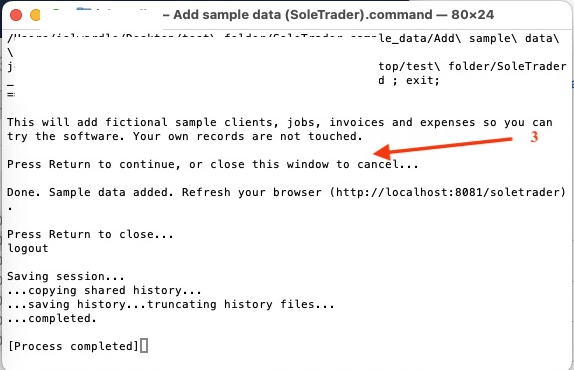
Press Return at arrow 3. When it says Done. Sample data added., you can close the window. If it says something else, such as Docker isn't running, it will tell you what to do. Fix that and double-click the file again.
-
Refresh your browser
Go back to your software and refresh the page. The sample clients are there, along with their jobs, invoices, income and expenses.
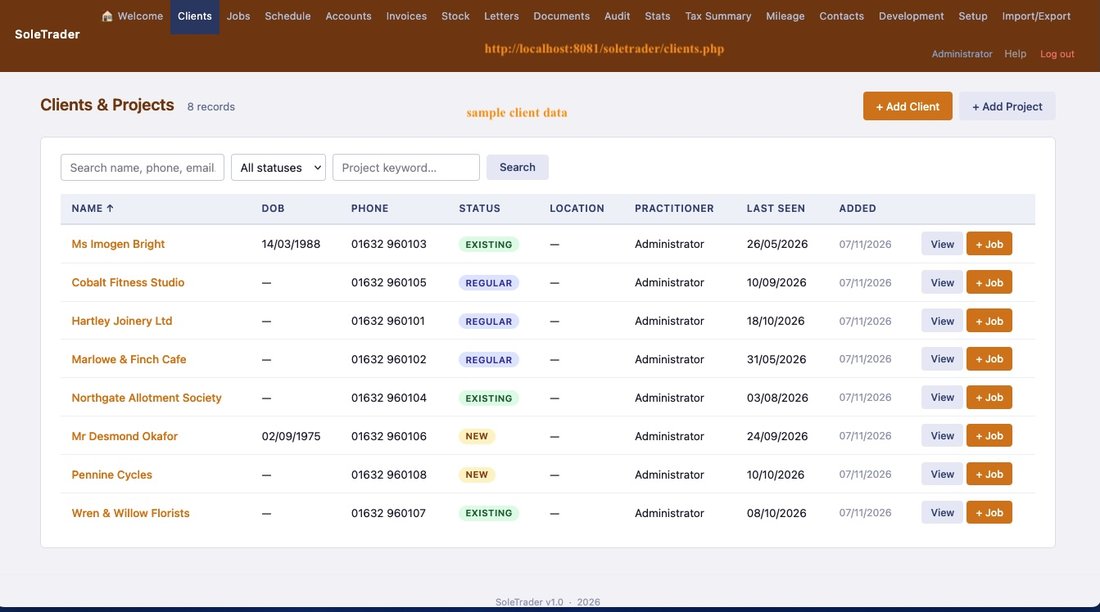
The client list now has eight sample clients.(or sample patients for crystalsolutions or praxis) 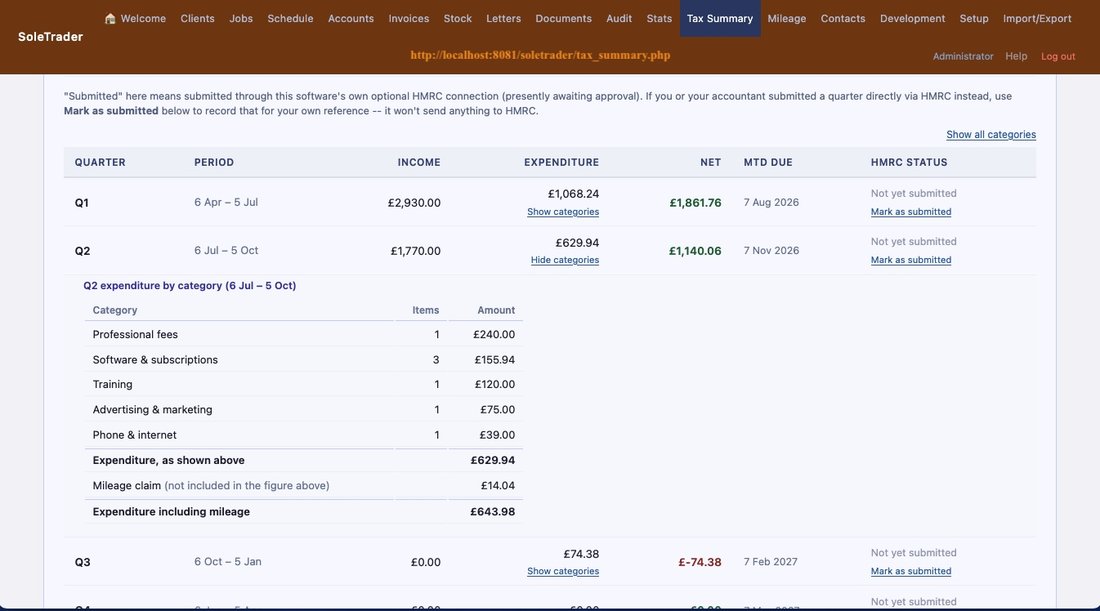
The Tax Summary shows quarterly income and spending, with the category breakdown.
Removing the sample data
When you have had a good look round, double-click Remove sample data (…).command in the same folder and press Return. Only the sample rows are removed – anything you have entered yourself stays exactly as it is. (The first time you may need to repeat steps 2 and 3 for this file.) You can add the sample data again at any time.
Questions
Is it safe to open?
Yes. The file is a short, plain-text script, and you can read it first: right-click it, choose Open With → TextEdit. It checks that Docker and your software are running, then adds the rows from the .sql file in the same folder to your database. It doesn't connect to the internet. Your Mac warns you only because the file isn't signed by Apple.
It says my software isn't running
Open Docker Desktop, go to Containers, and start your software if it isn't running (press the play button next to it). Wait for it to show Running, then double-click the file again.
It says it can't find the .sql file
The script needs the .sql files in the same folder. If you moved the .command file on its own, put it back with the others.
I ran it twice. Do I have duplicates?
No. Running it again removes the earlier sample rows first and then adds them again.
I'm on Windows, or I'm not using Docker
On Windows, use the .bat files in the same zip in the same way (right-click → Run as administrator if nothing happens). Without Docker, the .sql files can be imported with phpMyAdmin instead – choose your database, click Import, pick the file and click Go. (for standard installs see the sample-data-phpmyadmin page)
Remember: the sample data is made up. Every name, address and phone number is invented, and it isn't meant for a live practice or business – remove it before you start entering your real records.