Installing on a Mac
CrystalSolutions, SoleTrader and PraxisClinic run on your own Mac, so your records stay on your computer. The installer does the hard work. Once your Mac has accepted the installer, it takes just two or three minutes, (if you have Docker already installed).
- You need Docker Desktop, a free program that runs the software. Get it from docker.com (choose the Apple chip or Intel version to match your Mac), install it, and open it once so it is running.
(When Docker starts up, it will offer to create an account — you don't need one. Look for the small 'Skip' link in the top right of that screen) - You have downloaded your installer zip and double-clicked it to unzip it. You'll see a file ending
_Installer.app.
-
Double-click the installer
Double-click
…_Installer.app(here it's PraxisClinic).The first time, your Mac will warn that it can't check the app. That is normal for software that doesn't come through the App Store. Follow the two "Open Anyway" steps with screenshots on the sample-data page (opens in new tab) (the steps 2 & 3 are the same for the installer as for the sample-data files), then double-click the installer again.
-
Let it check Docker
A progress window opens and works through a short checklist. It looks for Docker Desktop and checks that it is running. If Docker isn't running, the installer will tell you to open it. Do that and run the installer again.
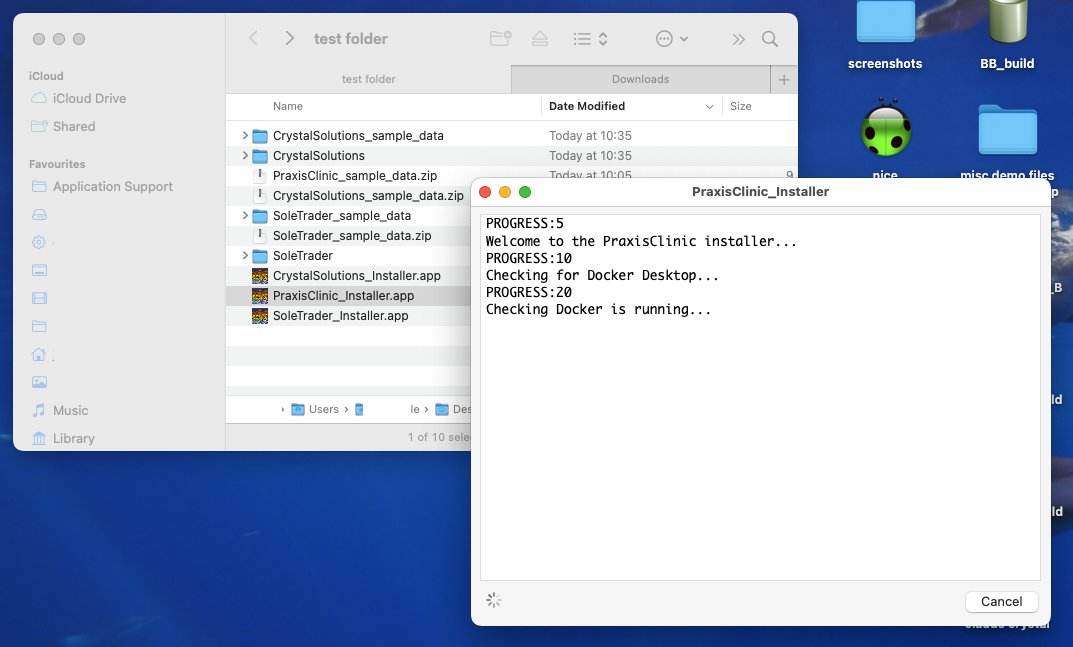
The installer checks for Docker Desktop. -
Click Allow, and choose where to install
Your Mac will ask whether the installer may access files in your Documents folder. Click Allow. The installer then asks where you want the software to live. Pick a folder you will remember, and don't rename or move it afterwards.
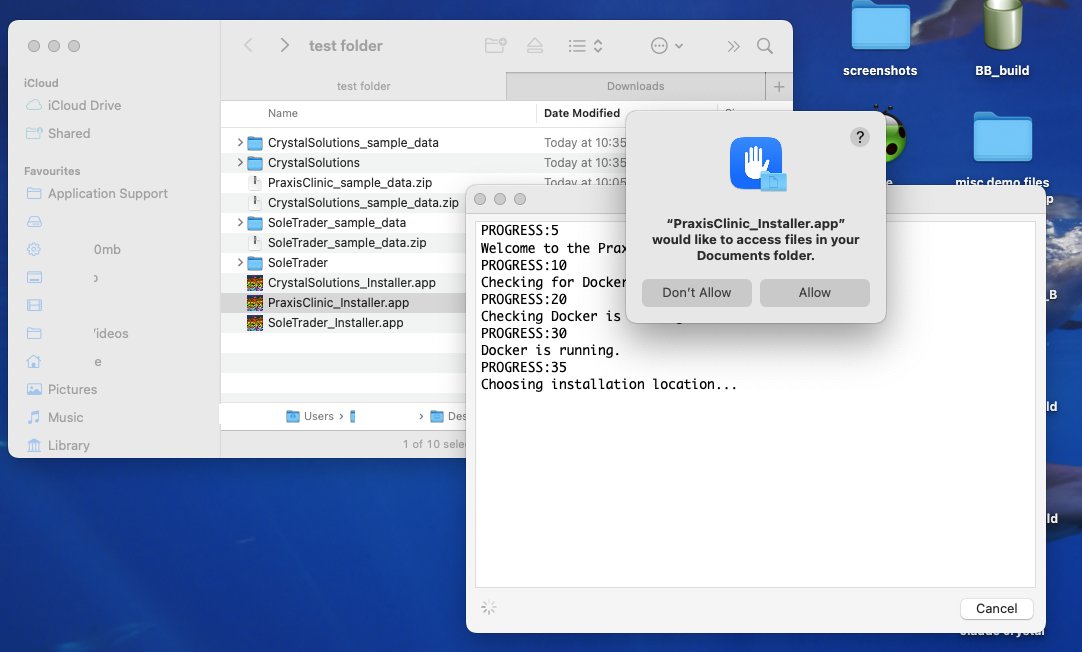
Click Allow. -
Wait while it builds
Lots of technical text scrolls past while Docker downloads and sets everything up. You don't need to do anything. The first install takes the longest, because it downloads the database and web server. Leave the window open until it finishes.
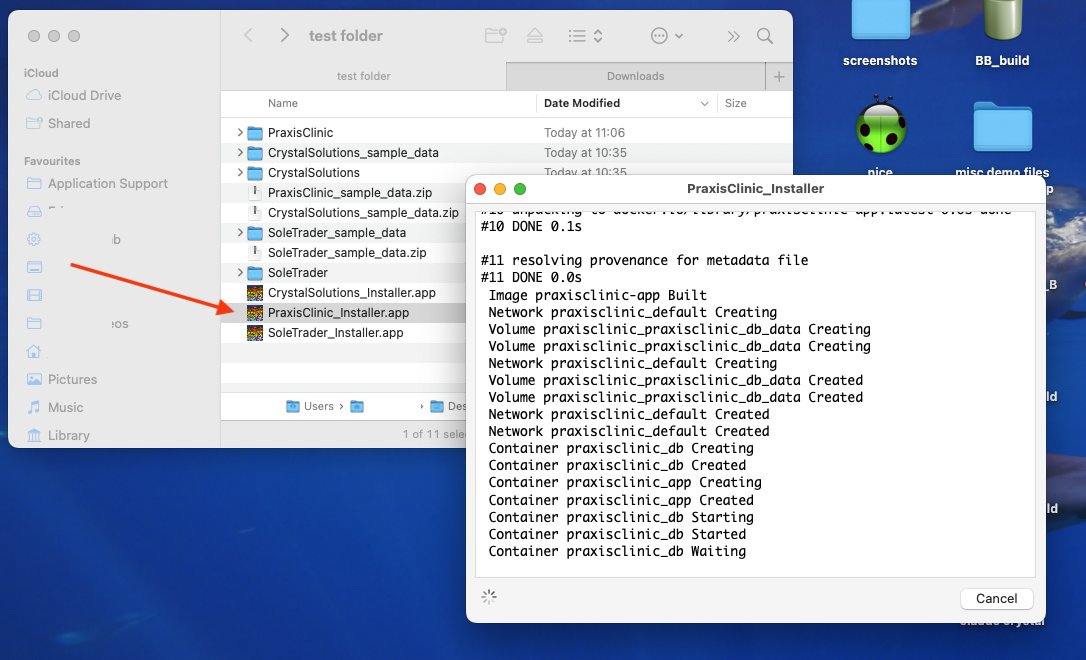
Docker setting up your software. A new folder with your product's name appears in the install location. -
Log in
When it's ready, a message appears with your first login details, and your browser opens the software.
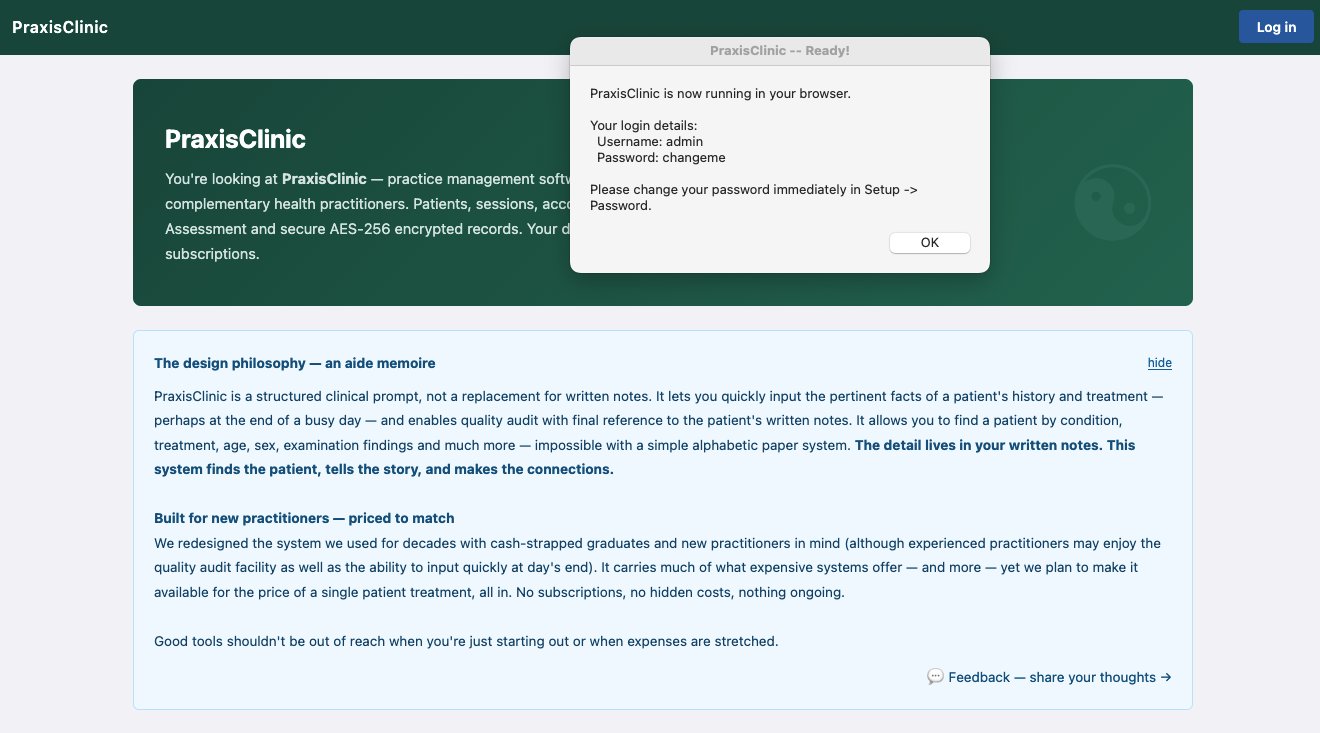
Click OK, then Log in. Use adminandchangeme.Change the password straight away in Setup → Password.
Addresses and ports
| Product | Open it in your browser at |
|---|---|
| CrystalSolutions | http://localhost:8080/cspractice |
| SoleTrader | http://localhost:8081/soletrader |
| PraxisClinic | http://localhost:8082/praxis |
Bookmark the address. You can install more than one product on the same Mac, because each uses its own port.
Day to day
Docker Desktop needs to be open and your product running for the software to work. Open Docker Desktop, go to Containers, and press the play button next to your product if it isn't running. After a restart, Docker Desktop usually starts your software again for you.
Next: try it with sample data
If you'd like to see how it all works before entering your own records, you can add some made-up sample data in one click and remove it again afterwards.
The sample records count towards the trial’s 10-record limit. Remove the sample data (one click) before you add your own, or delete a record or 2 or activate a licence to lift the limit
Questions
The Mac says the app is damaged, or won't let me open it
Use the "Open Anyway" steps linked above. If you still can't open it, delete the zip and the unzipped folder, download it again, and unzip it by double-clicking in Finder.
Nothing happens after the installer finishes
Open Docker Desktop and check that your product is listed under Containers and is running, then open the address in the table above.
Can I move or rename the installed folder?
No. Docker remembers where it was installed, so moving or renaming the folder stops it working. Pick the right place the first time.
Your records stay with you. Everything is stored on your own Mac. Keep your own backups, and see the README in the install folder for how.